When it comes to automation on Azure, you can sometimes get swallowed up by the documentation - and lost in a myriad of out of date articles….
Here I hope to show the process of automating processes - working through the steps between understanding provisioning in the portal, translating that into CLI commands, evolving the cli commands to achieve the same result in terraform and then finally wrapping it all in GitHub actions……
Here we will identify all the inputs and requirements for each stage of facilitating and creating a subscription via cli - this will remind us of the stages and steps needed for full automation |

I’ve chosen automating Azure Subscription vending to start with for a number of reasons
To deploy a subscription is a task that requires significant privileges - so by looking at this first we’ll consider the trickiest configuration of your Service Principal
Deploying a subscription forces us to face the wonder that is the Billing API early on - so we can understand the hierarchy of the accounts
Assigning permissions for Service Principals into Billing is not standard - you’ll see nothing in the az cli for some of what we need to achieve, so we’ll also be delving into making POST requests to the Azure APIs
in fact - to provision a Subscription is one simple command…. but the journey is a hellish one.
Requirements
- Identify Billing Account Details for our Service Principal

:azure: Identify Billing Details |
|---|
In the Enterprise Agreement world, our org has a billing account - which should cover the entire business. Under that org we have further sub-divisions of
- locate the Billing Account detail in the portal
az billing account list
- locate the Billing Account via CLI
At the very top-level from a licensing perspective, you can have multiple Azure Enrolments, here you can select the enrolment you want to work with. You need to be an Enterprise Administrator to access this. There can be an unlimited number of Enterprise Administrators.
Once you select the Enrolment you are working with, you then select ‘Department‘ at the top. This is where you can see all the departments in which you are the Department Administrator for and you can setup more departments which can be setup as a logical segmentation of a company or application.
- Add or Locate an appropriate department via the Portal
Within the Departments we have a number of accounts. These accounts can be seen as users that can provision azure resources under them - and they are registered under the Account - this allowing accountability and allocation logic
- Add or locate an appropriate Account to use for our service principal
az billing enrollment-account list
- Add or locate an appropriate Account via cli
- Create a Service Principal to run our automation
- see the
CLIENT_ID(App ID) - retrieve a
CLIENT_SECRET

:azure: :azcli: Create a Service Principal |
|---|
A Service Principal is created in a bare form - so it’s pretty simple to just create it and get the details. The credentials for service principal should be treated with great caution…. we intend to give this account some pretty high access!
Azure Portal
You can create a service principal (or App Registration) via the portal by selecting our AD Tenant and then App Registration from the left column.

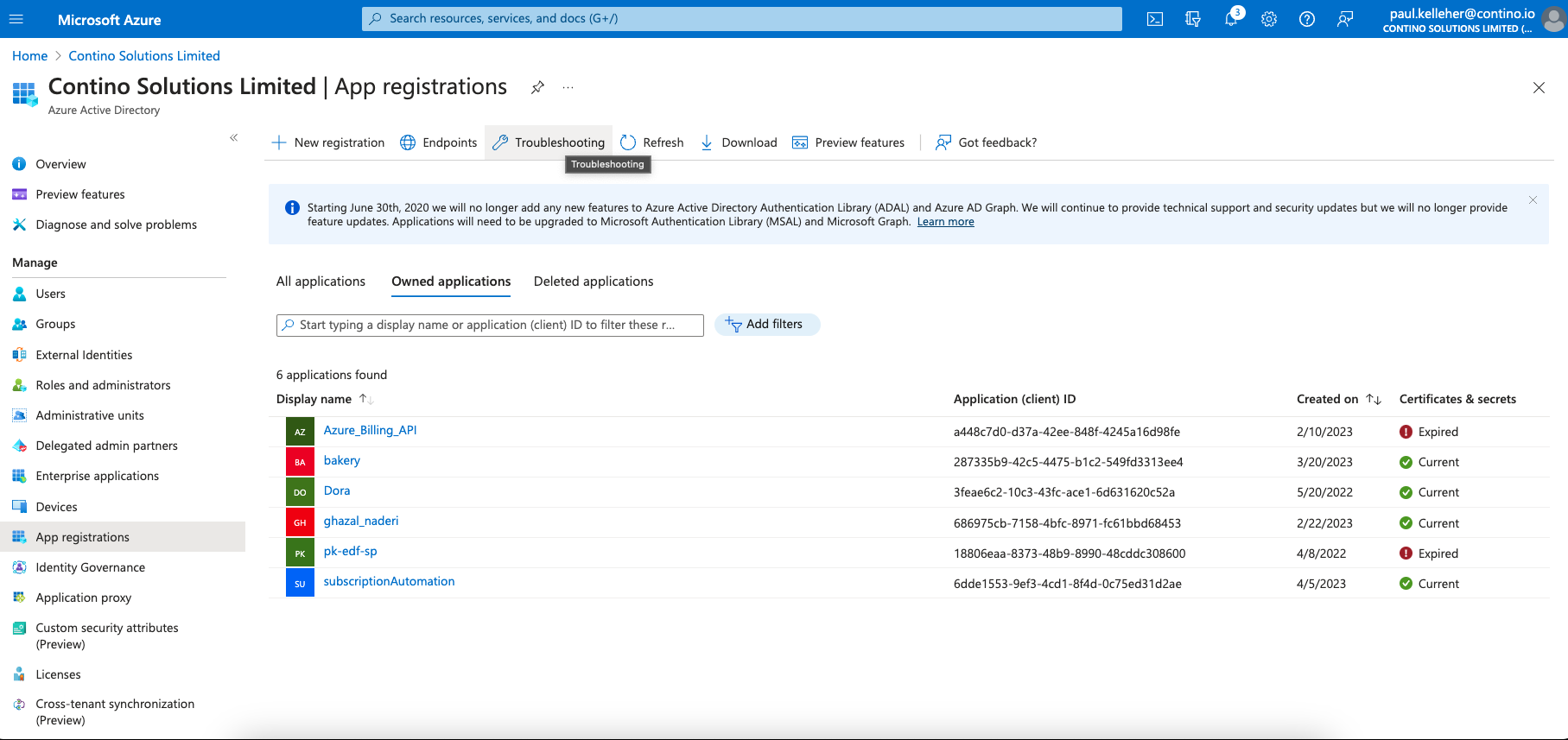
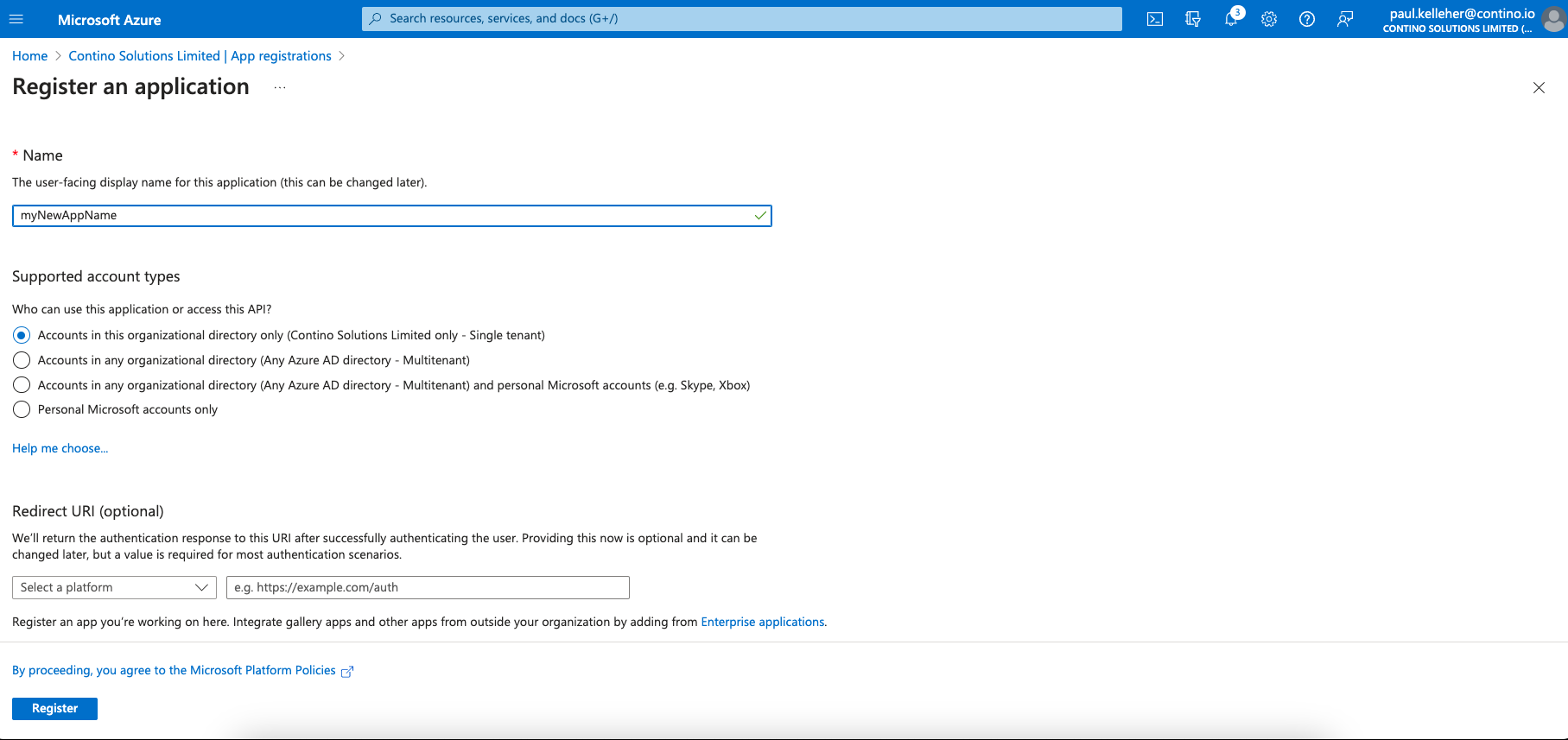
If we select New App - we simpy need to enter a unique name and define the scope - for our purposes simply enter the app name and select all other defaults
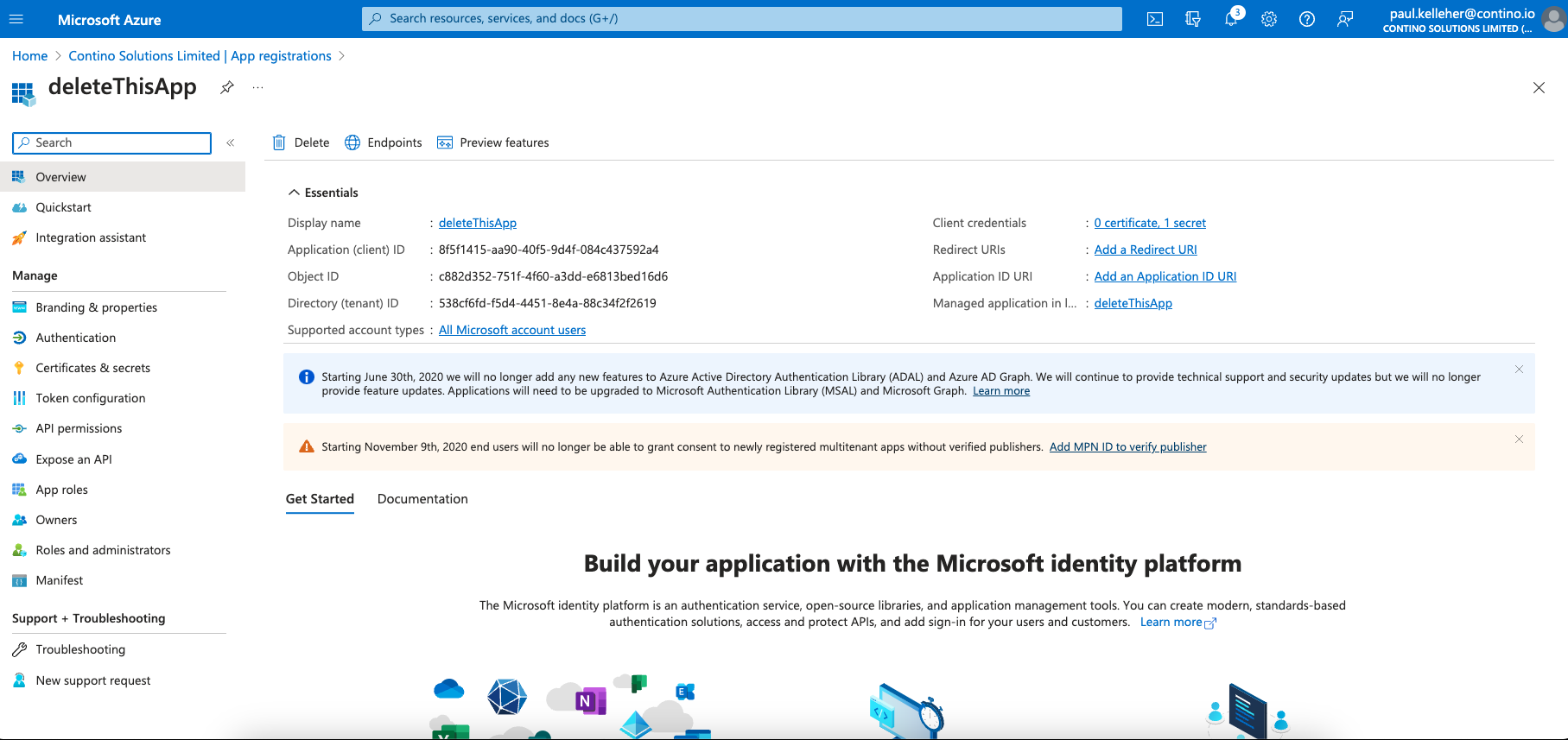
we are then presented with the App Info
- Create a new Service Principal via Portal
we can use. the details here together with a generated secret from the Secrets and Certificates page
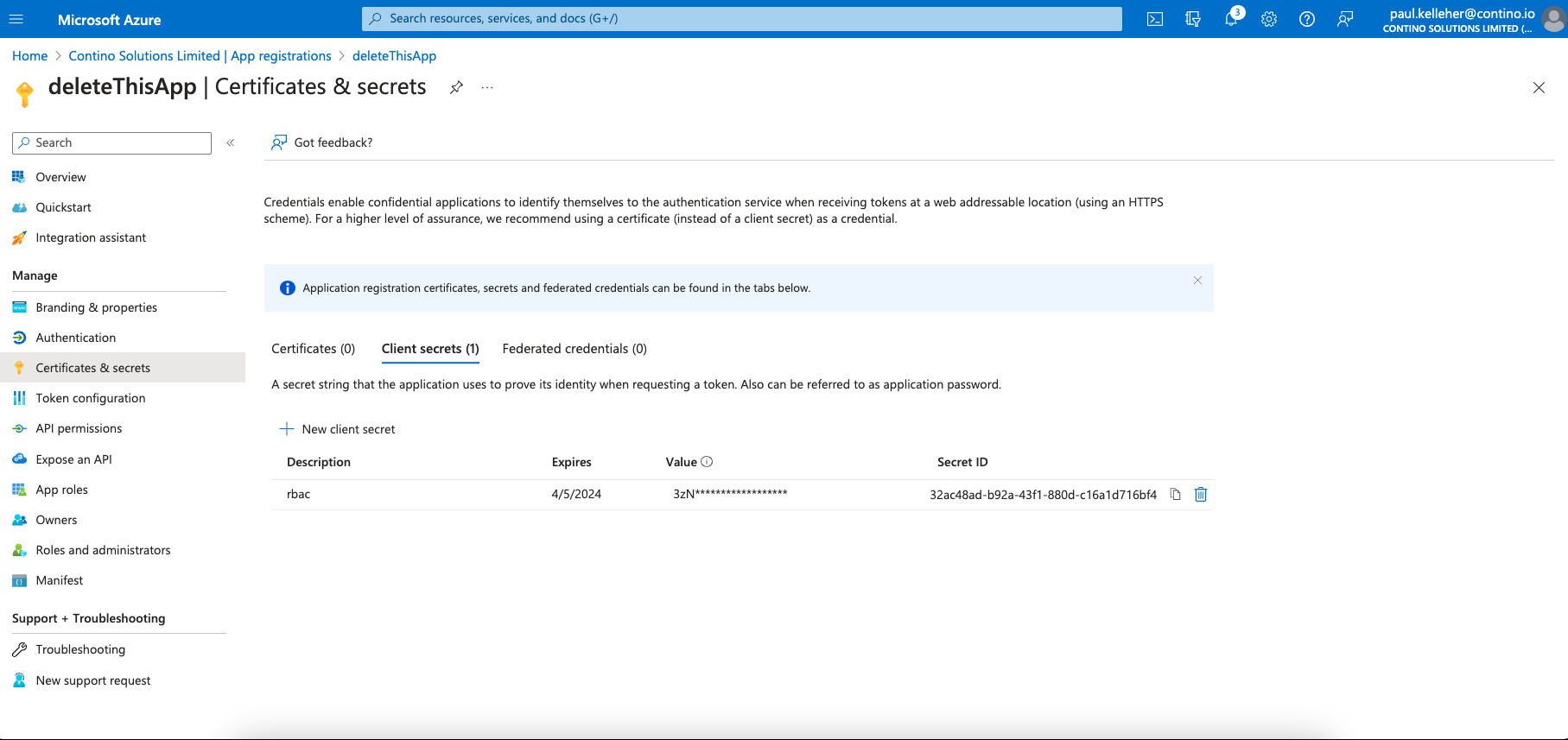
- Create a secret for a Service Principal via Portal
Azure CLI
az login
az ad sp create-for-rbac -n myAppName
will create the app and deliver the credentials
{
  "appId": "8f5f1415-aa90-40f5-9d4f-084c437592a4",
  "displayName": "deleteThisApp",
  "password": "3zN8Q~ttttttttttttttttttttttttttttt",
  "tenant": "538cf6fd-f5d4-4451-8e4a-88c34f2f2619"
}
- Create a Service Principal via CLI
- Create a secret for a Service Principal via CLI
- Create an enrolment account for the Service Principal
- Assign the SP to the enrolment account

:azure: :azcli: Assign Roles & Permissions |
|---|
We want our Service Principal to create new accounts - so we can either assign Global Admin to the SP - or create a Enrolment Account
Azure Portal
Global Admin should be a last resort - so using an account that has Billing Administrator role assigned, select the billing account (the overall business account) and then under accounts (on the left), create a new Account
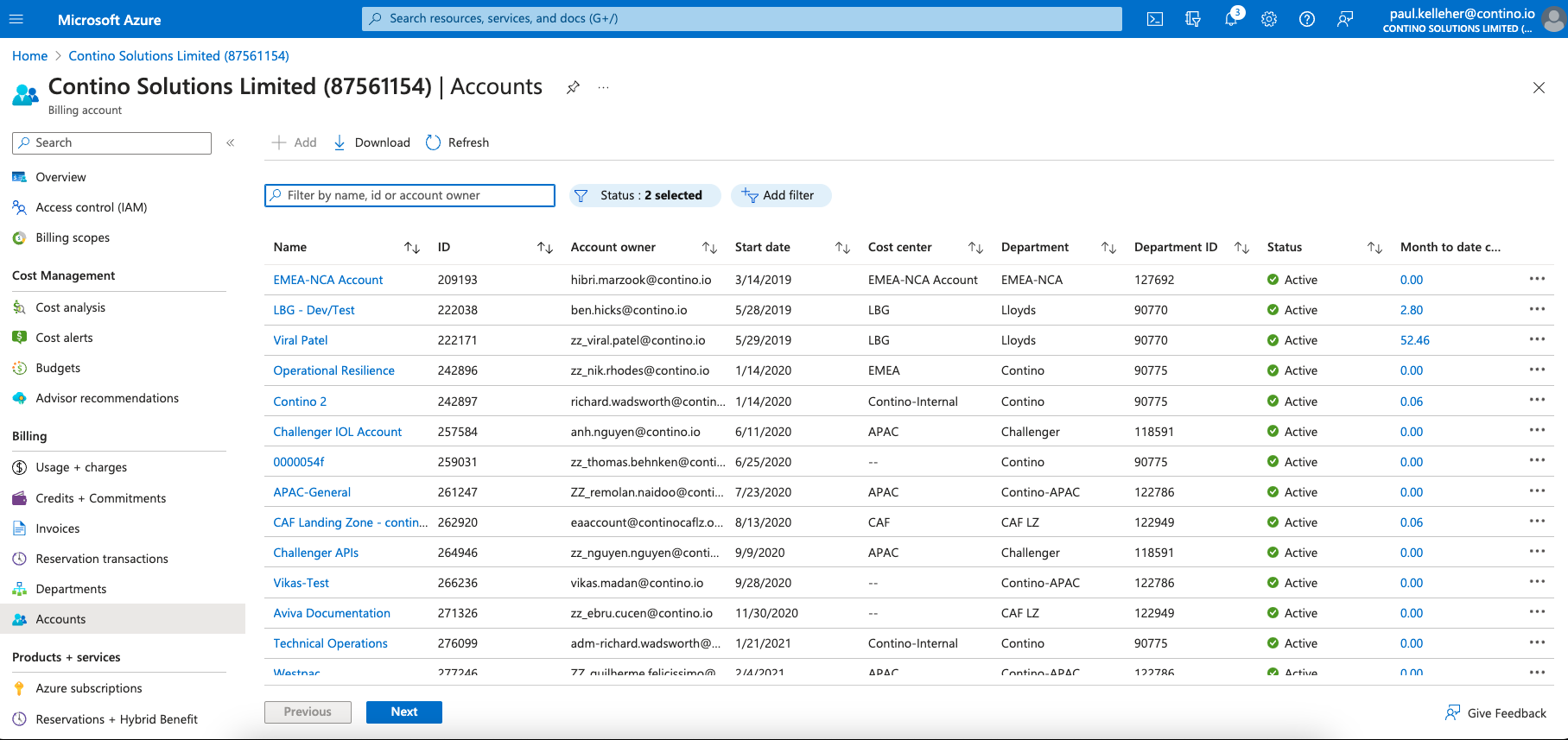
Azure CLI
Billing functions - well billing admin functions are pretty limited with the az cli - you’ll see alot of read functions to allow easy access to data - but no support for EA admin like this.
There are Azure Billing API commands but at the time of writing the documentation seems inconsistent and too much trouble!
|
|---|
 Checkpoint
 |
|---|

Now we have run through the process manually with portal and cli commands, we know what we need to put into the process - what the process creates - and what us delivered when complete
Understanding the process and inputs/outputs is the first step to automating
Next we’ll take the process and variables we discovered here and mimic the steps in terraform… first locally and then in a GitHub Workflow

Attachments:
 image-20230405-170628.png (image/png)
image-20230405-170739.png (image/png)
image-20230405-171338.png (image/png)
image-20230405-171514.png (image/png)
image-20230405-172439.png (image/png)
image-20230405-172926.png (image/png)
image-20230405-170628.png (image/png)
image-20230405-170739.png (image/png)
image-20230405-171338.png (image/png)
image-20230405-171514.png (image/png)
image-20230405-172439.png (image/png)
image-20230405-172926.png (image/png)
 image-20230405-173007.png (image/png)
image-20230405-173141.png (image/png)
image-20230405-173007.png (image/png)
image-20230405-173141.png (image/png)
 image-20230405-173232.png (image/png)
 image-20230405-182030.png (image/png)
 image-20230405-182326.png (image/png)
 right.png (image/png)
 0.png (image/png)
 0b.png (image/png)
 1.png (image/png)